
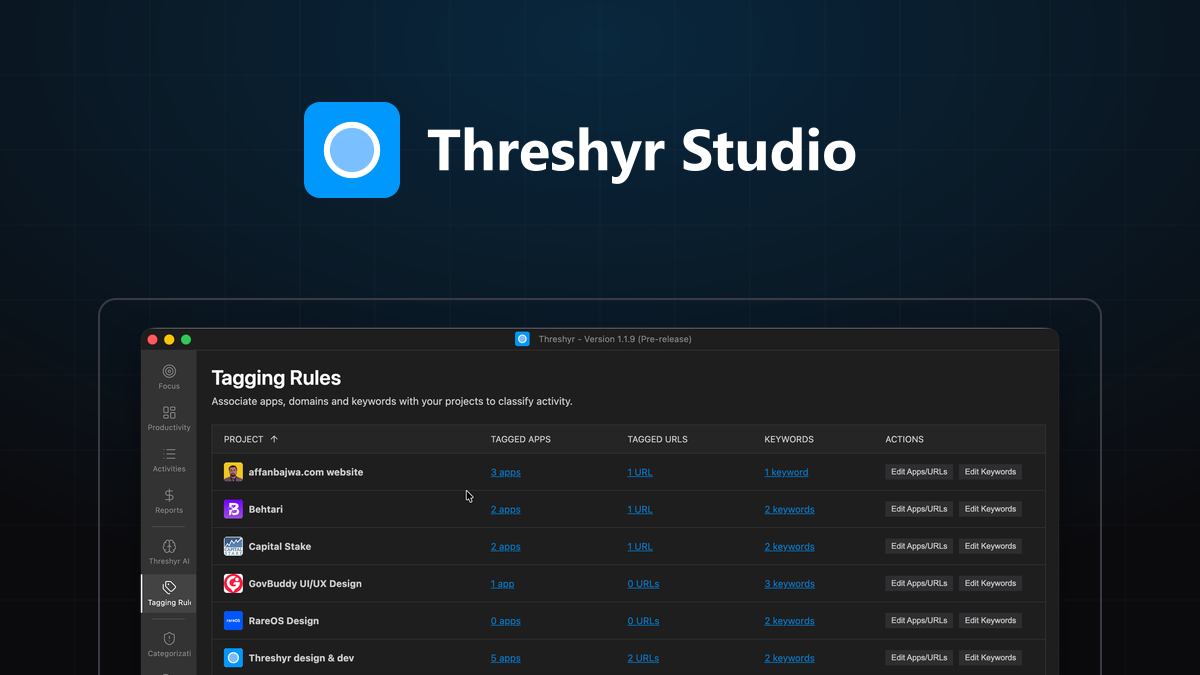
Most automated time tracking setups fail in one of two predictable ways. Either the user writes rules so hyper-specific that the slightest change in file naming causes half the week's work to land in an unassigned bucket, or they write rules so broad that five completely unrelated client accounts get dumped into a single generic project.
A well-designed tagging setup is worth thirty minutes of focused attention once. After that initial setup, it should either run silently in the background without daily intervention, or it was configured incorrectly from the start.
Why Should You Organize Tagging Rules by Client Rather Than by Application?
The most common mistake when setting up tagging rules is organizing by software application.
Creating a rule that maps your code editor to "Development" and your browser to "Research" provides virtually no value when invoicing clients. At the end of the month, your clients do not care how many hours you spent inside a text editor; they care how many hours were dedicated specifically to their deliverables.
Begin by setting up a dedicated profile for each client or major internal initiative. Under each client, define specific projects corresponding to distinct contract deliverables or billing rates. Your tagging rules should map directly to these project boundaries rather than generic application categories.
What Are the Three Best Desktop Signals to Build Tagging Rules On?
A durable tagging configuration relies on three distinct desktop signals:
How Do You Use Window Title Keywords to Match Client Documents?
Every desktop window title contains descriptive text about the active document, task, or file. Add keywords that are uniquely tied to a specific client engagement:
- Project code names (e.g.,
Apollo,Starlight) - Repository directory names (e.g.,
client-frontend,billing-service) - Client document prefixes (e.g.,
Acme_Contract,Acme_Design_Spec)
Whenever an editor, terminal, or PDF reader displays that keyword in its title bar, the session is attributed directly to that client project.
How Do You Track Specific Clients Inside Multi-Tab Web Browsers?
Web browsers host work for multiple clients concurrently. Rather than matching on the browser itself, match on the specific web domains associated with each account:
- Client staging environments (e.g.,
staging.acme.com,dev-portal.acme.internal) - Project management boards (e.g.,
linear.app/acme,trello.com/b/AcmeBoard) - Dedicated production dashboards or client portals
When Should You Tag Entire Desktop Applications to a Project?
If a client requires you to communicate through a dedicated communication channel or use a proprietary software tool that is not shared with other accounts, map that specific application directly to the project.
What Tagging Anti-Patterns Should You Avoid Over the Long Term?
To keep your rules working smoothly over months, avoid common anti-patterns:
- Matching on overly generic words: Adding single words like
test,app,design, orapiwill cause unrelated tasks across all your clients to trigger false matches. Keep keywords specific to the client's distinct identity. - Matching on fragile folder paths: If you match against a full directory path like
/Users/name/Projects/2026/Q1/Acme/src, any future file reorganization breaks the rule immediately. Match on the stable repository or project folder name instead. - Creating one rule per individual task: Do not create rules for specific bug tickets or minor sub-tasks. Tagging rules should operate at the project level, leaving granular activity details to your timestamped session logs.
How Do Daily Corrections Build Your Automated Rules Engine for You?
You do not need to anticipate every possible document title or staging subdomain on day one.
When an activity contains ambiguous context that does not match an existing rule, Threshyr holds that time back as unassigned rather than guessing. When you open the day view and assign that block to its appropriate project, Threshyr saves that correction as a permanent rule.
The system learns the new pattern automatically. Over time, your tagging system becomes more complete with almost zero proactive configuration.
For the billing workflow this feeds into, see how to track billable hours across multiple clients.
How Do You Audit and Tune Your Tagging Setup After One Full Week?
After running Threshyr for one full work week, perform a five-minute health check on your setup:
Open the activity timeline and look at the ratio of assigned project time versus unassigned time. In a well-calibrated setup, seventy to eighty percent of your billable workday will be assigned automatically without manual intervention.
If you find that most of your time remains unassigned, your keyword rules are likely too narrow. Add one or two broader repository or domain terms. If you find time attributed to the wrong client, check for overly generic keywords and tighten the matching phrases.
Once calibrated, your tagging rules run silently in the background, keeping your client billing balances accurate without demanding your ongoing attention.
Download Threshyr for Windows and macOS at /download to set up automatic project tracking with complete local privacy for $29 per year during pre-release.

Written by Affan Bajwa
Founder of Threshyr. Passionate about local-first software architecture, developer productivity, and building privacy-first tools for knowledge workers.
Download Threshyr Studio
Free to use during pre-release on Windows and macOS. No account, no card, no sign-up required.
Related Articles
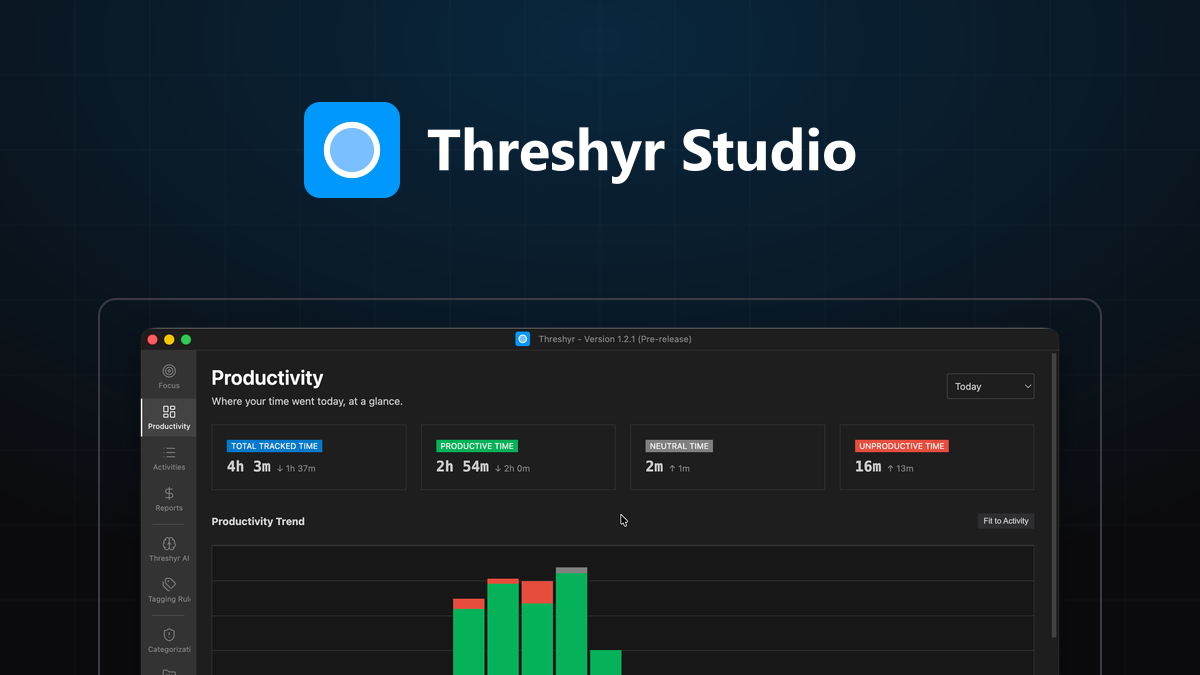
How to Activate Your Threshyr Studio License
A step-by-step guide to locating your license key after purchase and activating it inside the Threshyr desktop app under Settings.

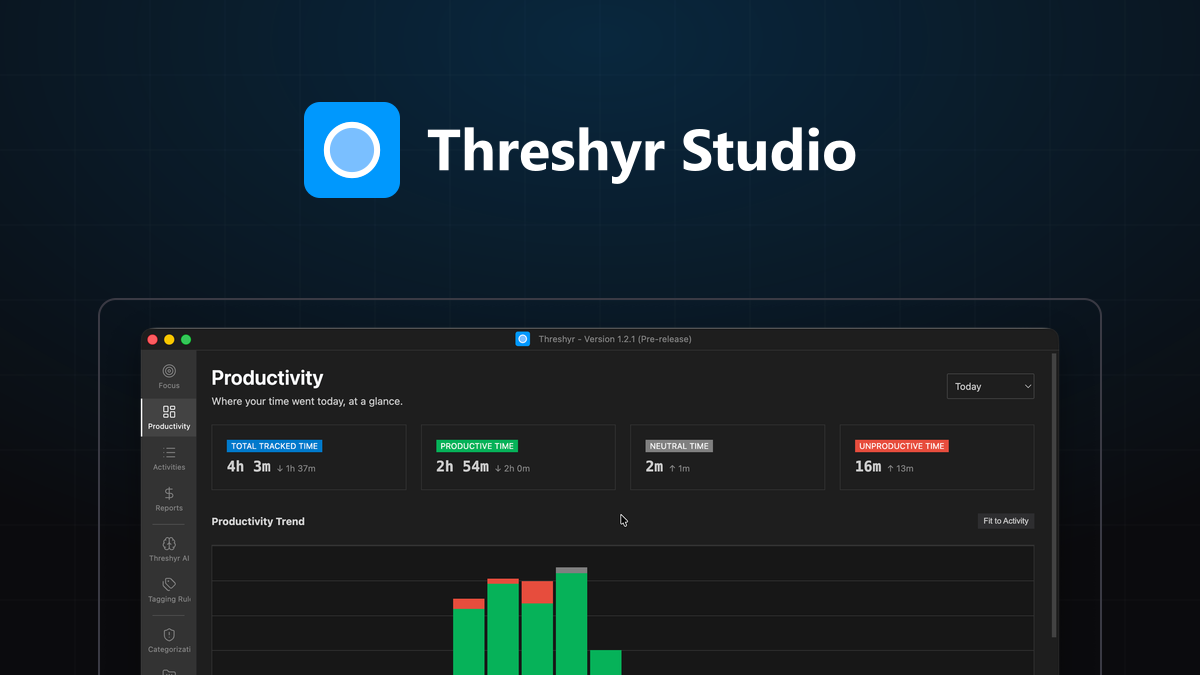
How to Read Your Week and Actually Change It
How to extract actionable decisions from your weekly time tracking reports without falling into the trap of obsessing over raw productivity scores.