
It is 4:45 PM on a Friday. You have three active client contracts, twelve browser tabs open across two different staging environments, a text editor with four open repositories, and a timesheet that has not been updated since Tuesday morning. You sit down to work out which billable hours belong to which client, relying on git commits, sent emails, and calendar invites.
You already know the result before you finish adding the numbers: the total is wrong in someone's favour. If you round up to protect yourself, you feel the quiet guilt of guessing. If you round down to remain conservative, you donate four or five unbilled hours to a client who was perfectly willing to pay for them.
Why Does Human Memory Systematically Under-Bill Freelance Work?
The primary reason freelancers lose billable revenue is not that they work fewer hours than they think. It is that human memory is poorly suited to tracking fragmented attention.
When you sit down for a dedicated four-hour block to build a database migration, you remember it. But modern consulting rarely happens in unbroken four-hour blocks. A client sends an urgent Slack message asking why an email webhook failed. You switch to a terminal, inspect a log file for twelve minutes, reply with the fix, and return to your original task.
Later that afternoon, another client asks for a quick review of a pull request. You read the diff, leave two comments, and close the tab.
Those fifteen-minute interventions never make it onto a manual timesheet. You do not start a stopwatch for an email that might take ninety seconds, even when it spirals into a quarter-hour investigation. By Friday, five or six of these micro-tasks have vanished from your records. Over a month, that missing time easily compounds into fifteen or twenty unbilled hours.
Manual timers fail because they demand constant executive function at the exact moment your focus is being pulled elsewhere.
Why Must You Separate the Client Project from the Desktop Application?
Most time trackers make a category error: they treat applications as the unit of work rather than the client project context.
They log that you spent two hours in Visual Studio Code, ninety minutes in Google Chrome, and forty minutes in Figma. For an employee working on a single product, that data is mildly interesting. For an independent developer billing three different companies, it is useless.
Your tools do not belong to your clients. The same browser window hosts staging sites for Client A, production dashboards for Client B, and personal documentation. The same code editor holds workspaces for multiple distinct repositories.
The real signal that separates billable accounts is not the application name. It is the context inside the application:
- The repository directory name visible in your editor title bar
- The staging domain or subdomain in your browser URL
- The document name in your design tool or spreadsheet
- The issue tracker project prefix in your tab titles
To track billable hours accurately across multiple clients without running timers, your software must attribute time based on those contextual signals rather than the application binary.
How Do You Set Up Automated Project Attribution in Threshyr?
Threshyr handles multi-client tracking by running quietly in the background and matching your desktop activity against specific project rules.
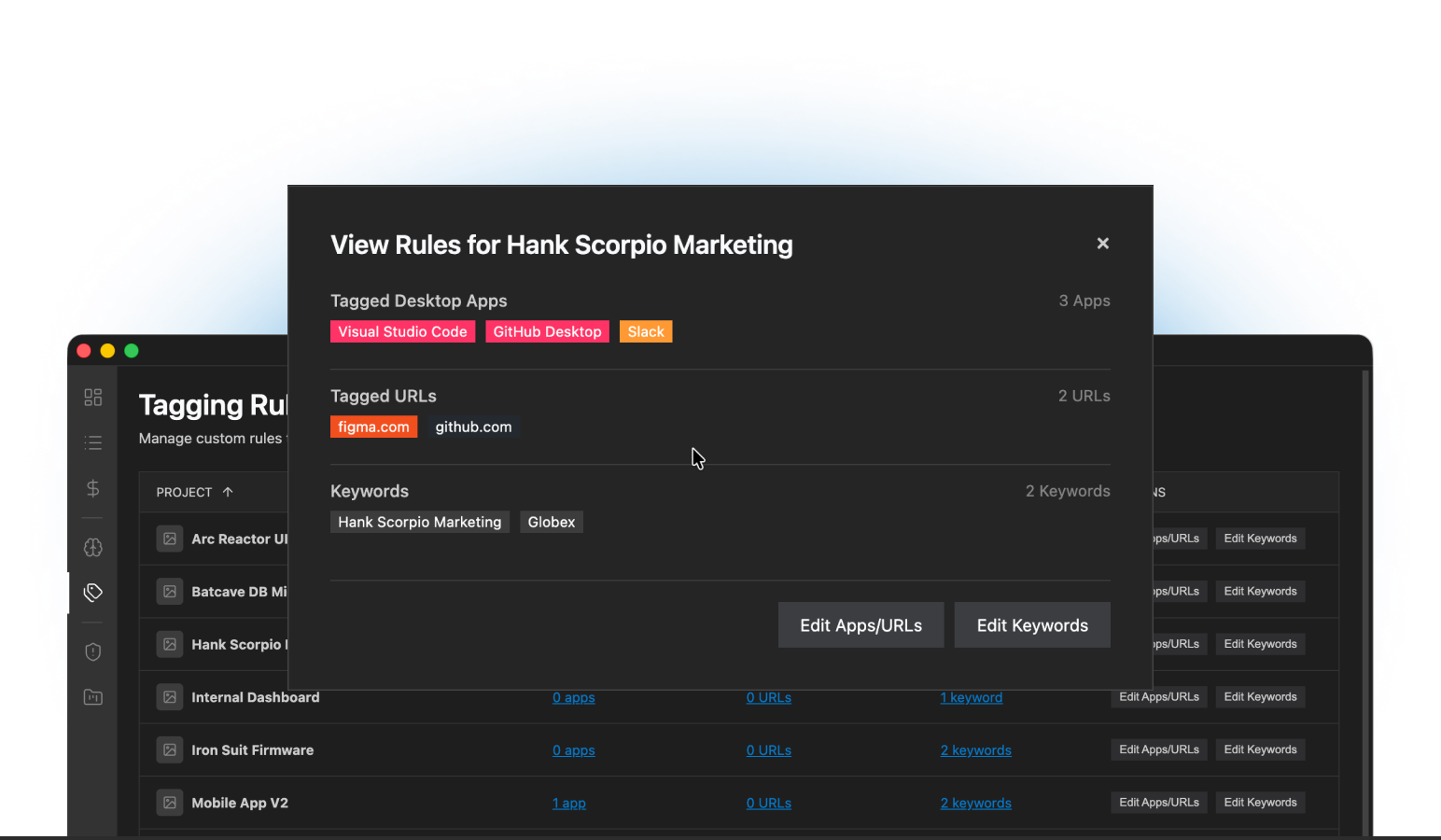
Setting up an automated structure takes about fifteen minutes when onboarding a new client:
How Do You Define Distinct Clients and Projects?
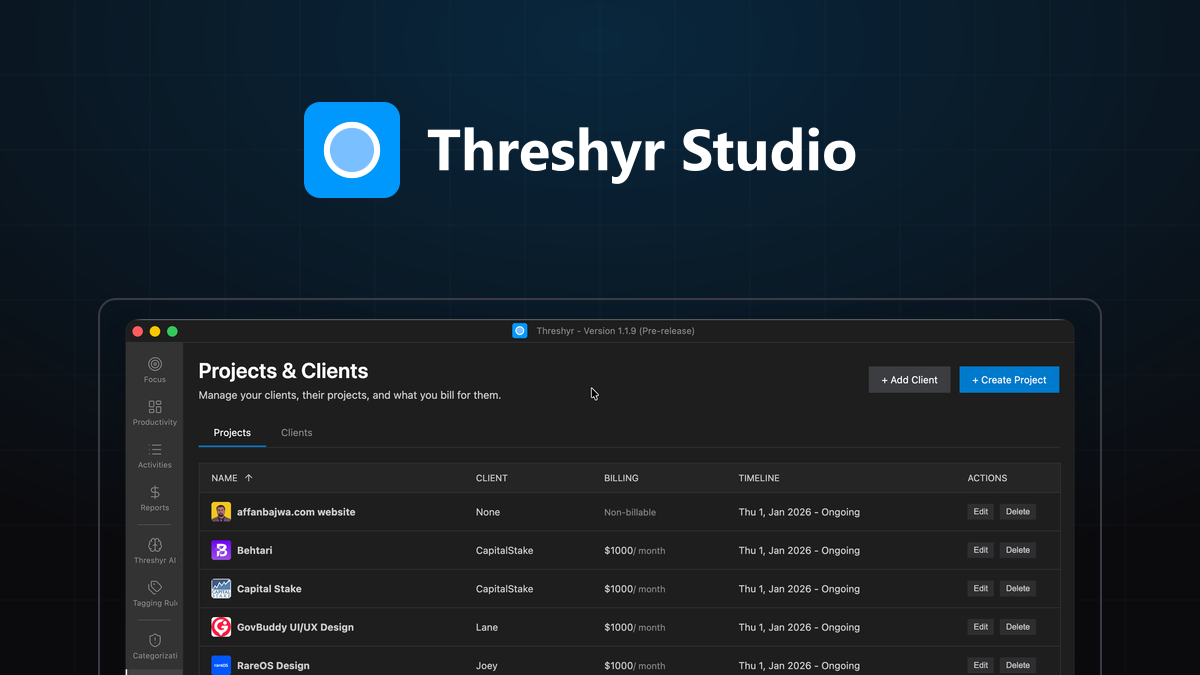
Create a dedicated client profile for each company you bill, then create one or more projects under that client. For example, if you are doing both infrastructure maintenance and new feature development for an account named Acme Corp, you can create separate projects for each scope or keep them unified under a single project with an assigned hourly rate.
How Do You Establish Three-Layer Tagging Rules for Each Client?
Under each project, add tagging rules that match the distinctive text strings associated with that client. A reliable tagging setup uses three matching layers:
- Window title keywords: Add the client code name, repository folder name, or project identifier (such as
acme-apiorAcme Redesign). Whenever your text editor or terminal window contains that string in its title bar, Threshyr assigns that duration to the project. - Domains and subdomains: Add the client's staging environments, production domains, or internal documentation portals (such as
staging.acme.internalorlinear.app/acme). - Dedicated applications: If a client requires you to communicate inside their specific Slack workspace or use a unique desktop tool, map that application directly to the project.
Rule design is a topic of its own. Set up project tagging that runs itself covers which signals hold up over months and which ones quietly rot.
How Does On-Device AI Handle Shared Browsers and Ambiguous Tools?
General communication tools and reference documentation often resist clean automatic attribution. When you spend twenty minutes reading language documentation or debugging a generic framework error, the window title may contain no client-specific keywords.
Threshyr AI evaluates ambiguous window titles directly on your machine. When it is confident that a generic task belongs to a specific active project workflow, it assigns it. When it is uncertain, it holds the entry back as unassigned rather than making an inaccurate guess.
What Is the "Weekly Ten Minutes" and How Does It Replace Guesswork?
Automation reduces administrative overhead, but it does not eliminate the need for oversight. No software can magically deduce which client a fifteen-minute phone call was about if you took the call on a landline.
The sustainable approach is a weekly ten-minute audit:
Every Friday afternoon, open the day and activity views in Threshyr. Review the unassigned time blocks that the AI held back. Drag those sessions into their appropriate client projects or mark them as non-billable overhead.
When you manually assign an unassigned session to a project, Threshyr learns from that correction. The adjustment becomes a permanent rule for future sessions. A repository path or document naming convention you corrected today will be attributed automatically next Tuesday.
The ten minutes you spend reviewing unassigned time is the actual operational cost of accurate billing. It replaces hours of stressful guesswork with a quick, factual verification.
How Do You Turn Tracked Billable Hours Into a Defensible Client Invoice?
When it is time to bill, you should not hand a client an unreadable list of raw window titles or a vague lump sum. You need clear, defensible totals.
Threshyr's reports view compiles your tracked activity into structured summaries:
- Total hours worked versus total hours billed
- Total outstanding financial balances per project
- Monthly and project-level date range filtering
When preparing an invoice, filter the report by the specific client and billing period. You get the exact billable hour total and dollar amount owed, derived directly from your verified activity log. If a client questions a total, you have a chronological timeline of every active session with exact timestamps to back up the invoice.
You spend less time justifying your hours and more time getting paid for the work you actually did.
Tracking multiple clients does not require running three stopwatches or spending Friday evenings playing detective with your browser history. With sensible background tagging rules and a brief weekly review, attribution takes care of itself.
Download Threshyr for Windows and macOS at /download to track your billable client hours automatically and privately for $29 per year during pre-release.

Written by Affan Bajwa
Founder of Threshyr. Passionate about local-first software architecture, developer productivity, and building privacy-first tools for knowledge workers.
Download Threshyr Studio
Free to use during pre-release on Windows and macOS. No account, no card, no sign-up required.
Related Articles
How to Activate Your Threshyr Studio License
A step-by-step guide to locating your license key after purchase and activating it inside the Threshyr desktop app under Settings.

How to Read Your Week and Actually Change It
How to extract actionable decisions from your weekly time tracking reports without falling into the trap of obsessing over raw productivity scores.