
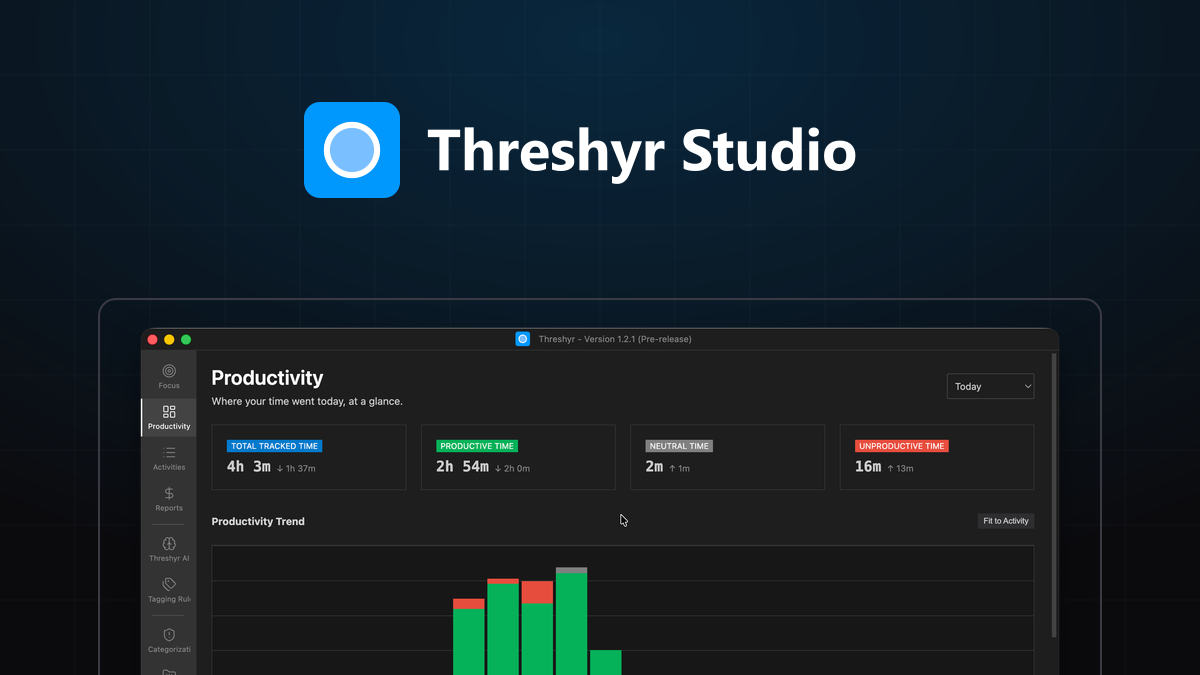
A friend installed Threshyr, opened it for the first time, looked at the clean interface, and asked me a simple question:
"Okay, what do I do now?"
It is a completely fair question.
There is no Start Timer button. There is no six-step configuration wizard. There is nothing to click.
That is the entire premise of automatic time tracking: eliminating the cognitive overhead of manual stopwatches so you can focus entirely on your work. But for anyone who has used conventional time trackers for years, "nothing to press" also feels like "no confirmation that anything is happening." That absence of manual friction can be disorienting on day one.
Here is what is actually happening behind the scenes, and what to expect during your first hour, your first day, and your first week.
What Happens During Your First Hour with Threshyr?
When you launch Threshyr on Windows or macOS, you do not need to set up projects or click a timer before starting a task. You simply minimize the app and do your work.
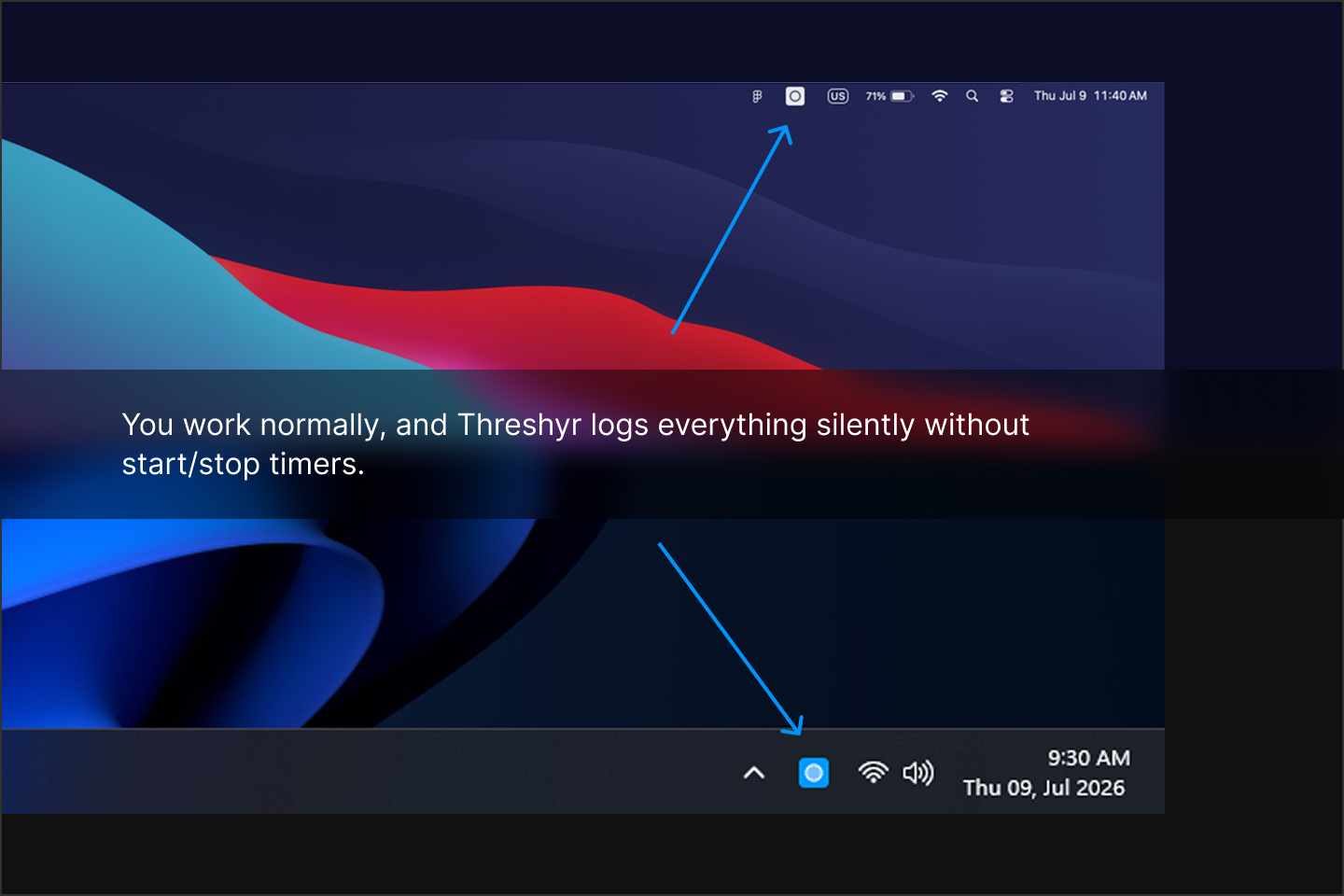
During your first hour, Threshyr runs silently in your system tray:
- Active Window Inspection: It logs active application names, document titles, and website domains as you navigate between them.
- Smart Idle Detection: When you step away from your computer for a coffee or a phone call, Threshyr detects your absence and automatically pauses tracking so idle breaks never inflate your productive totals.
- Zero Distractions: There are no pop-up alerts, reminder chimes, or intrusive prompts asking you what you are working on.
What Does Your Timeline Look Like at 5:00 PM on Day One?
At the end of your first working day, open Threshyr.
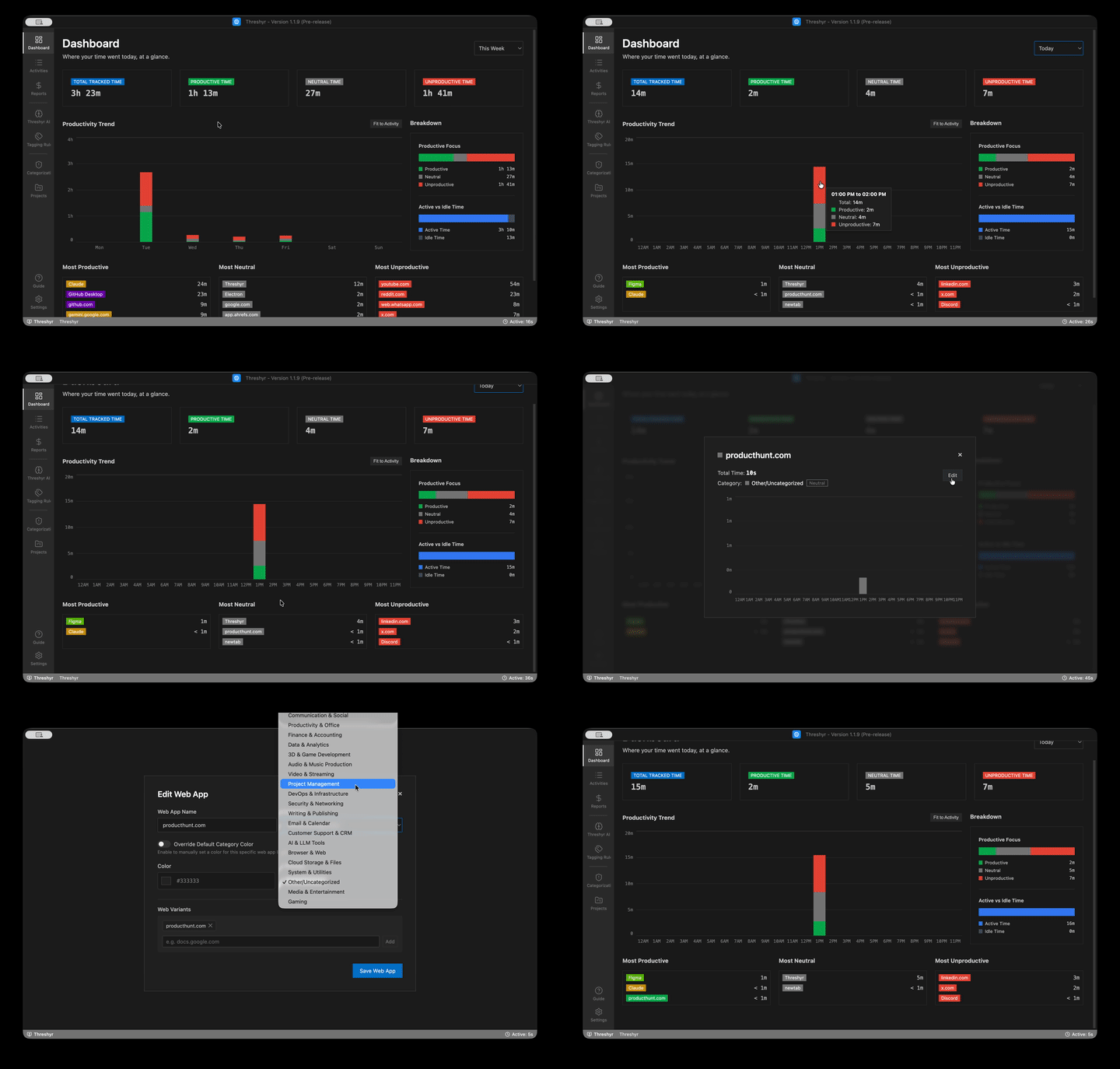
Instead of staring at a blank timesheet that you have to reconstruct from memory, your dashboard is already populated with a complete visual breakdown of your day:
- Productivity Breakdown: Your time is categorized into Productive, Neutral, and Unproductive work. Threshyr arrives with hundreds of popular developer tools, design software, and websites pre-classified out of the box.
- Timeline View: You can see exactly when you were in deep focus, where your attention fragmented, and how long your active work sessions lasted.
- One-Click Customization: If a specific tool is classified differently from your personal workflow (for example, if social media management is part of your billable work), you can change its category with a single click.
How Does Threshyr Learn Your Projects and Clients Over Your First Week?
Tracking total hours is helpful for productivity, but freelance developers, designers, and consultants need to know something more specific: which client is billed for which hour?
By the end of your first week, you have a rich record of your work patterns. This is where Threshyr’s local attribution engine shines:
How Do Granular Tagging Rules Distinguish Between Multiple Clients?
Freelancers frequently use the same code editor, browser, or terminal across multiple billable accounts. Threshyr allows you to define project tagging rules that match against:
- Application executable names (e.g., Figma, VS Code, Xcode)
- Website domains and subdomains
- Specific keywords in window titles, document filenames, or Git repository paths
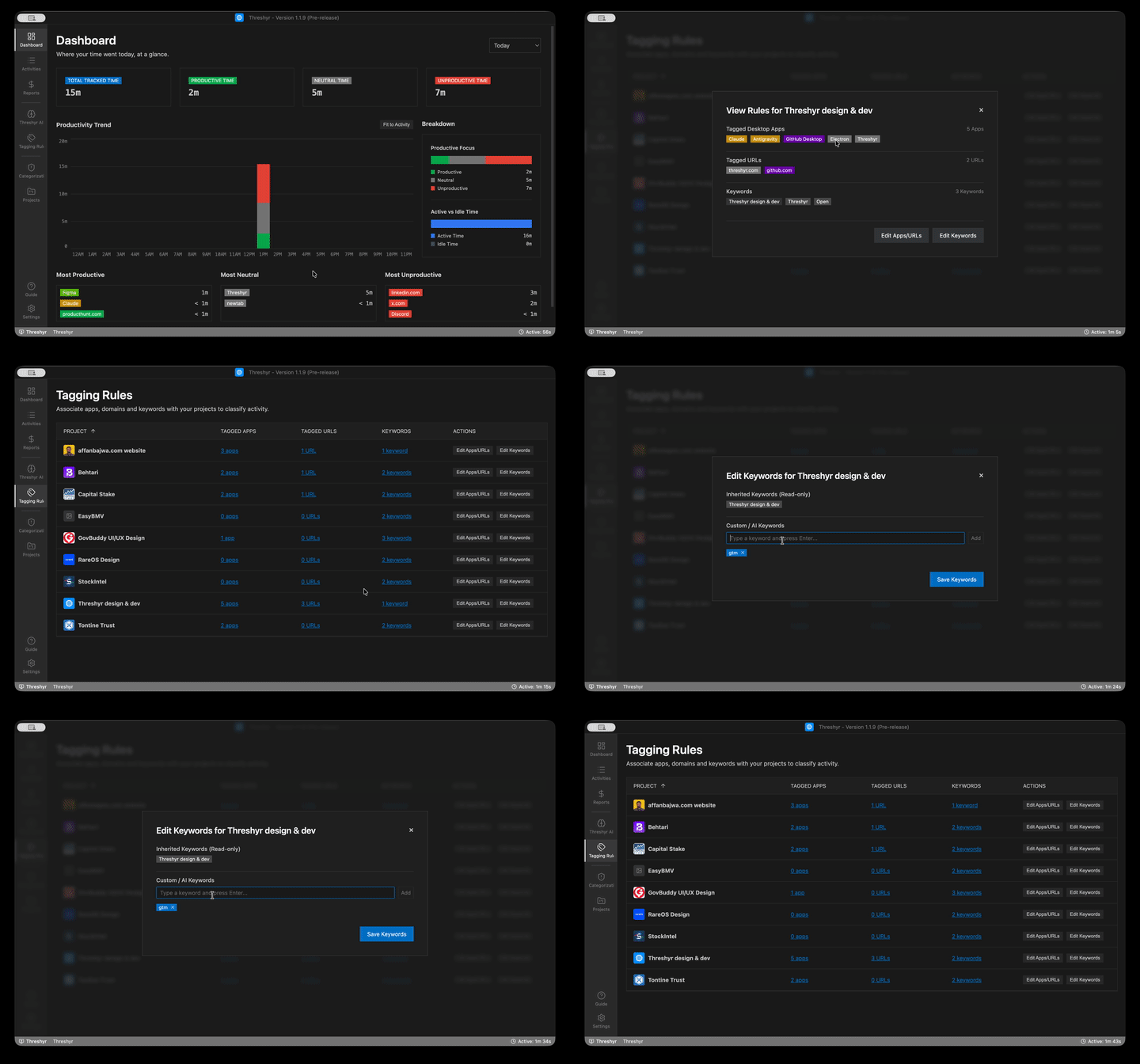
For a complete step-by-step walkthrough, see our guide on how to set up project tagging that runs itself.
How Does Radical Ambiguity Handling Prevent Speculative AI Errors?
Most cloud AI trackers make speculative guesses when they encounter unfamiliar tasks, forcing you to audit every entry to ensure your client timesheets are not corrupted.
Threshyr takes the opposite approach: when an activity clearly matches a known pattern, it assigns it. When context is ambiguous, it holds the session back as unassigned. When you assign an unassigned session to a project, Threshyr saves that correction as a permanent local rule. Next week requires noticeably less manual review than this week.
How Do Verified Client Billing Reports Simplify Your Monthly Invoicing?
Filter by custom date ranges and client projects to view:
- Total hours worked
- Total billable hours
- Outstanding monetary balances based on your hourly rates
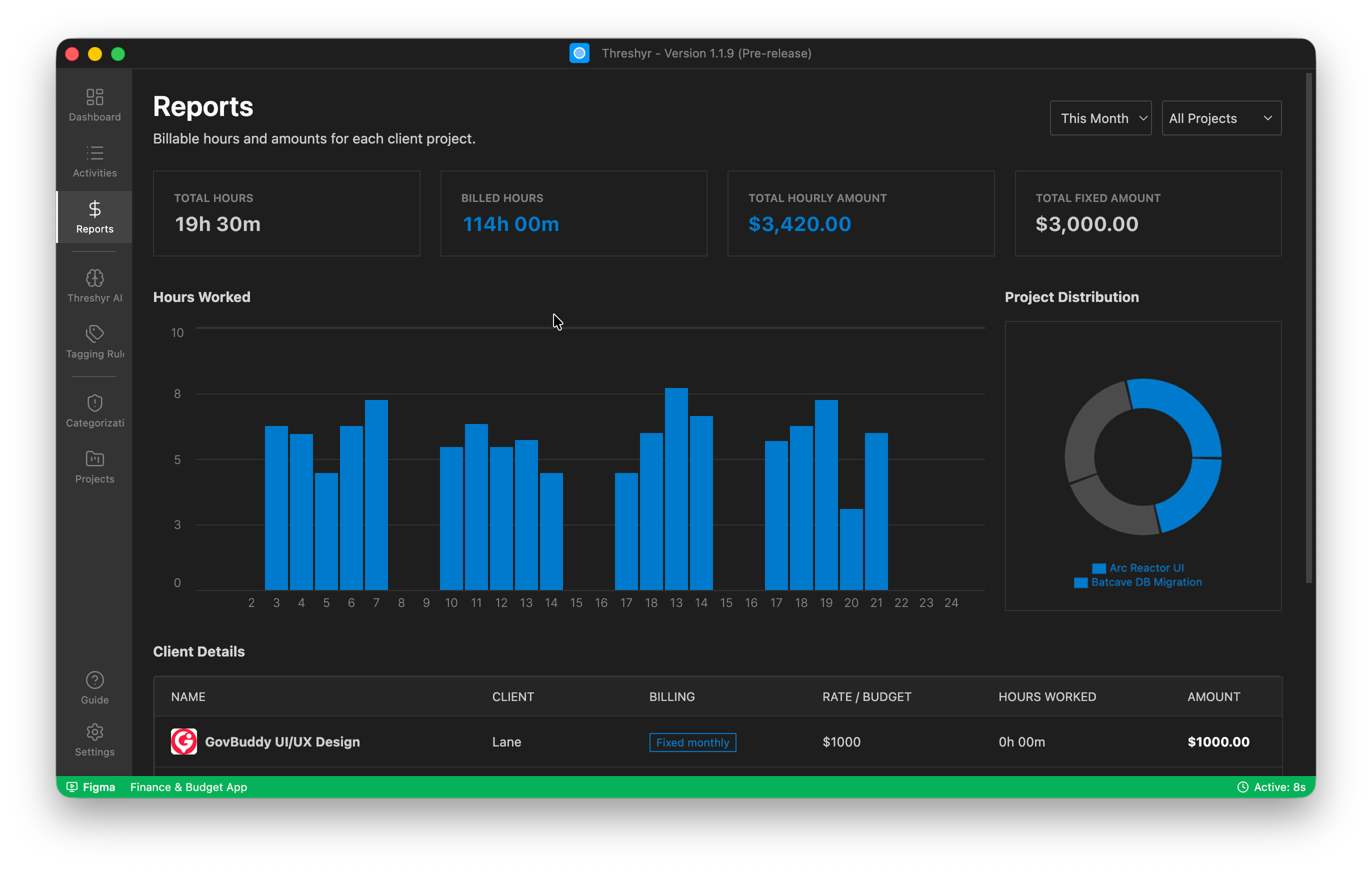
You get verified, itemized numbers ready to paste directly into your client invoices.
Why Is Local-First Privacy the Foundation of Threshyr?
Automatic time tracking monitors everything you do on your screen: confidential client repositories, internal communication channels, and proprietary code.
That data belongs strictly on your physical machine. Threshyr is built from the ground up on non-negotiable privacy principles:
| Privacy Principle | How Threshyr Operates |
|---|---|
| Data Storage | 100% on-device SQLite database |
| User Accounts | Zero logins, zero passwords, zero email requirements |
| Cloud Telemetry | Zero activity tracking, behavioral scripts, or cloud sync |
| Surveillance Features | Zero screenshot capture and zero keystroke logging |
| Network Dependency | 100% offline functionality (tracking and reporting run without internet) |
What Is Threshyr's Pricing Model and How Does It Compare to Monthly SaaS?
Threshyr is available during pre-release for a flat $29 per year (50% off the standard $58 per year launch price).
Your licence includes every feature, cross-platform access for both Windows and macOS, and all software updates released during your active licence period. There are no user tiers, no usage caps, and no monthly subscription lock-ins.
Download Threshyr for Windows and macOS at /download to experience automatic, private time tracking that runs itself.

Written by Affan Bajwa
Founder of Threshyr. Passionate about local-first software architecture, developer productivity, and building privacy-first tools for knowledge workers.
Download Threshyr Studio
Free to use during pre-release on Windows and macOS. No account, no card, no sign-up required.
Related Articles
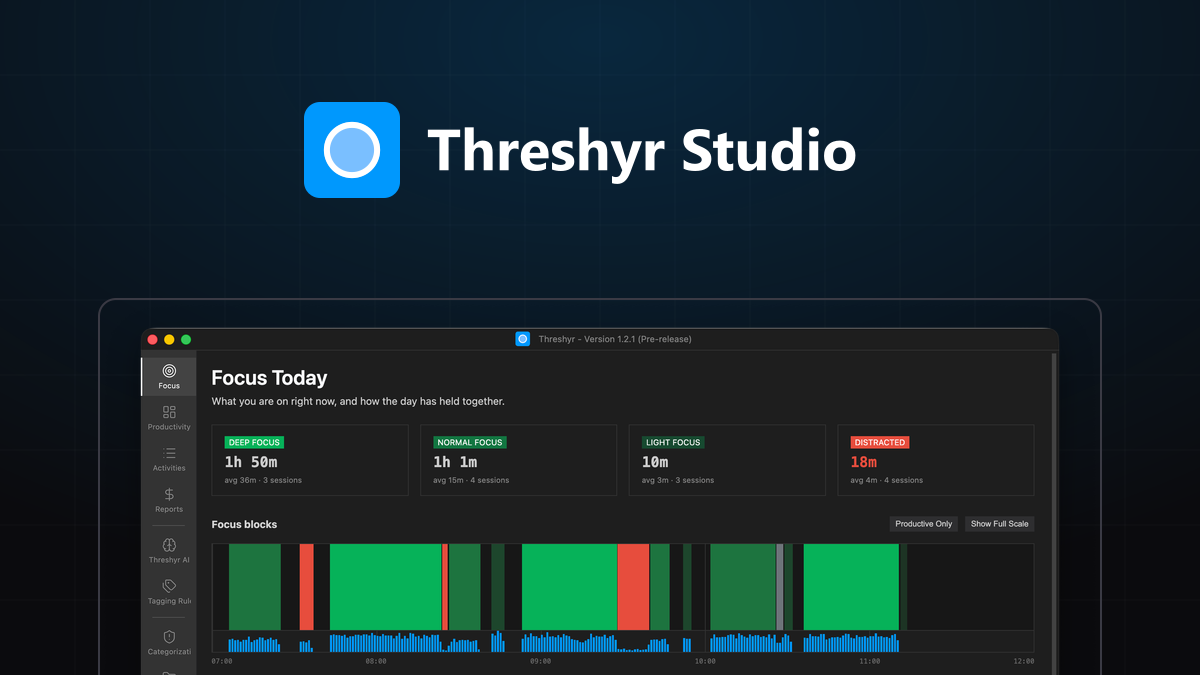
Introducing Threshyr Studio 1.2.1: Your Day, in Blocks
Threshyr 1.2.1 measures your workday in focus blocks, separates idle from off time, and brings complete mathematical consistency to your active hours.

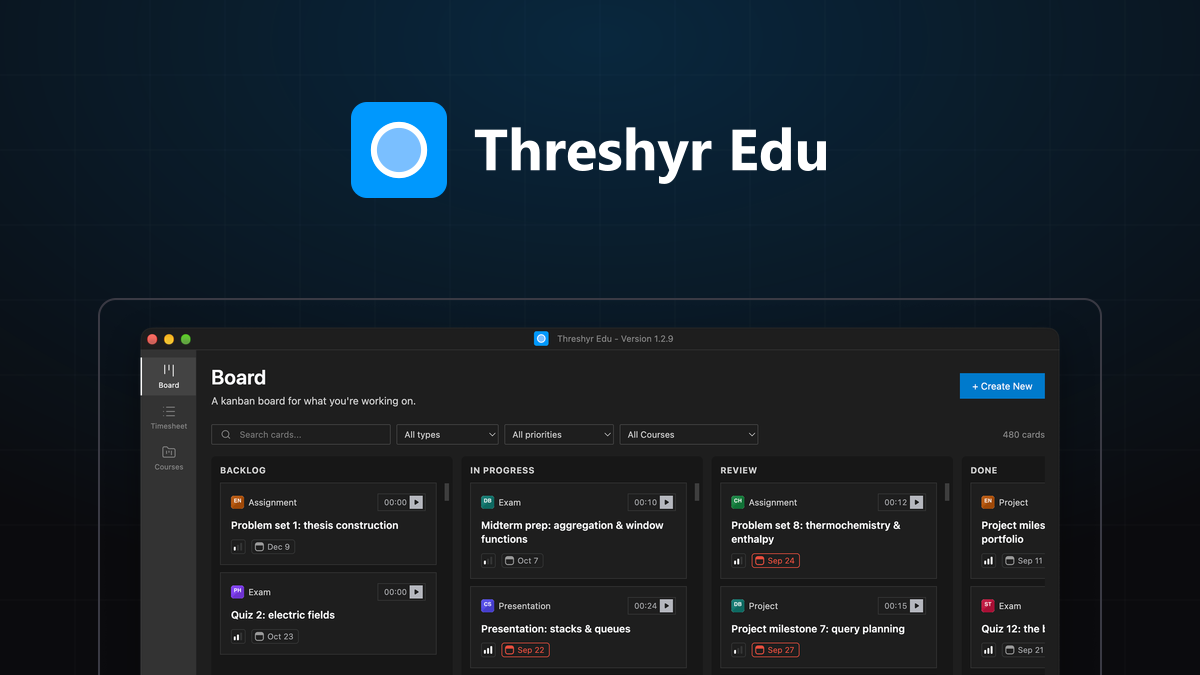
Getting Started with Threshyr Edu
A quick, step-by-step guide to set up your semester in Threshyr Edu: create courses, add tasks to your study board, run focus timers, and log timesheets.